Using Web Workers in JavaScript - An Old School Way of Writing Code
Introduction
JavaScript is a single-threaded language, meaning it can only perform one operation at a time. This limitation can lead to performance issues, especially when dealing with complex computations or heavy tasks that can block the main thread and cause the UI to become unresponsive. Web Workers provide a solution by allowing JavaScript to run tasks in the background, on separate threads, without interfering with the main execution thread. In this article, we will explore Web Workers in depth, understand how they work, and learn how to use them effectively.
What are Web Workers?
Web Workers are a standard way to run scripts in background threads. They are an essential feature of modern web development, providing the ability to perform tasks concurrently without blocking the user interface. Web Workers can be used for a variety of purposes, such as handling large data processing tasks, performing complex calculations, or managing I/O operations.
Types of Web Workers
There are three types of Web Workers:
Dedicated Workers: These are the most common type of Web Workers. Each dedicated worker is linked to a single script and a single context.
Shared Workers: These workers can be accessed by multiple scripts, even if they are in different windows or tabs.
Service Workers: These are special workers that can intercept network requests and manage the caching of resources. They are used primarily for building Progressive Web Apps (PWAs).
Creating and Using Web Workers
To start using Web Workers, you first need to create a new worker by providing the path to the worker script. Here is a simple example:
Basic Example of a Dedicated Worker
`main.js`
// Check if the browser supports Web Workers
if (window.Worker) {
  // Create a new Web Worker, providing the file name of the worker script
  const worker = new Worker('worker.js');

  // Define an event listener for messages received from the worker
  worker.onmessage = function(event) {
    // Log the message received from the worker to the console
    console.log('Message received from worker', event.data);
  };

  // Send a message to the worker
  worker.postMessage('Hello, Worker!');
}
`worker.js`
// Define an event listener for messages received from the main script
onmessage = function(event) {
  // Log the message received from the main script to the console
  console.log('Message received from main script', event.data);

  // Send a message back to the main script
  postMessage('Hello, Main!');
};
Main Script Components
Worker Creation:
- Create a new Worker instance by specifying the path to the worker script or using a Blob URL.
Message Passing:
Use
postMessage()to send data to the worker.Set up an
onmessageevent handler to receive messages from the worker.
Error Handling:
- Set up an
onerrorevent handler to catch and handle errors that occur within the worker.
- Set up an
Worker Termination:
- Use the
terminate()method to stop the worker when it is no longer needed.
- Use the
Worker Script Components
Message Handling:
- Set up an
onmessageevent handler to receive messages from the main script.
- Set up an
Message Sending:
- Use
postMessage()to send data back to the main script.
- Use
Error Handling:
- Optionally, throw errors within the worker script to be caught by the main script's
onerrorhandler.
- Optionally, throw errors within the worker script to be caught by the main script's
Understanding the Event Loop and Concurrency
Before diving deeper into Web Workers, it's important to understand how the JavaScript event loop works. The event loop is responsible for executing the code, collecting and processing events, and executing queued sub-tasks.
The Event Loop Explained
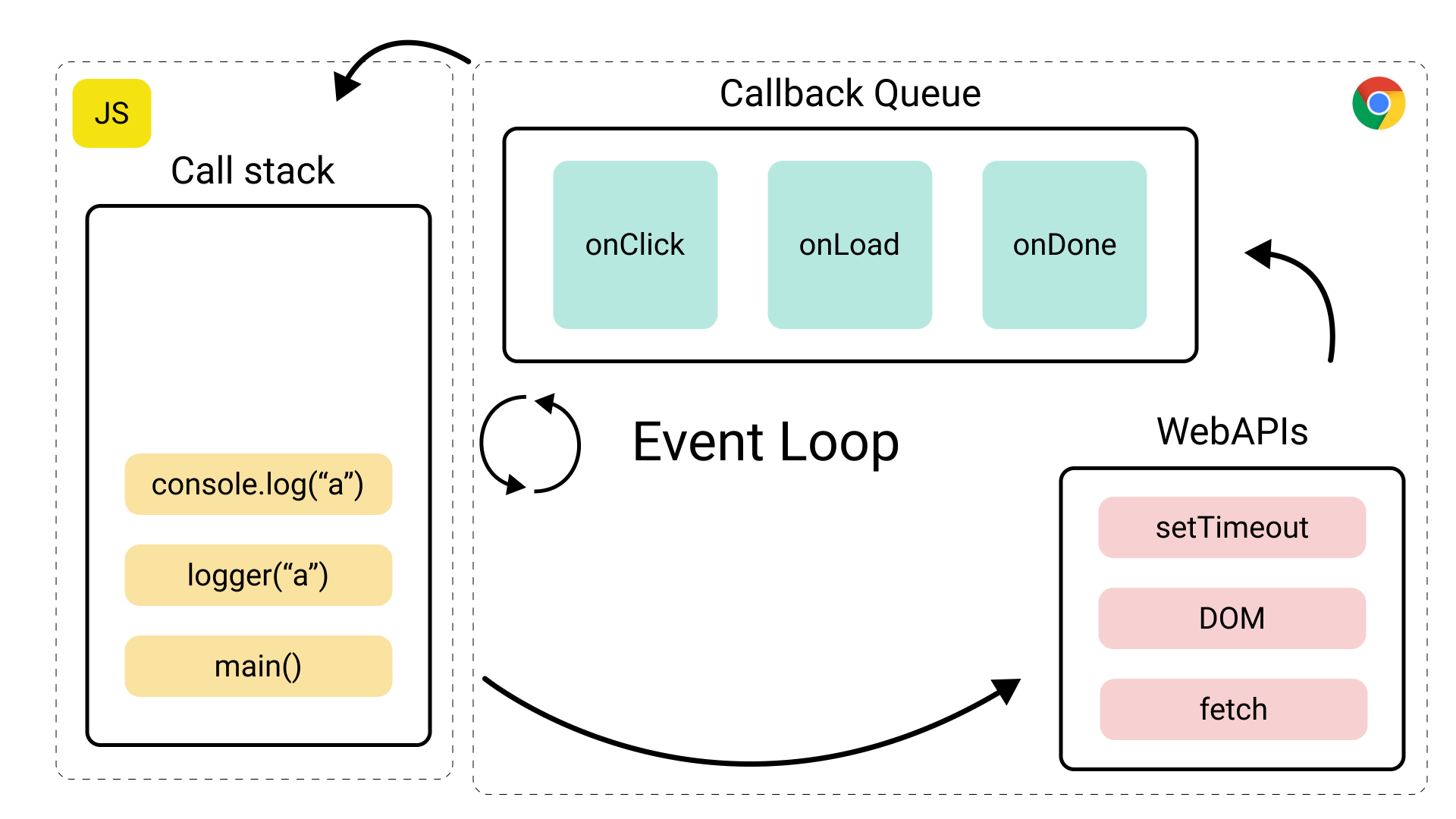
JavaScript uses an event-driven, non-blocking I/O model. This means that tasks are added to a task queue and executed one by one. If a task takes a long time to execute, it can block the event loop, causing the UI to become unresponsive.
Refer Asynchronous JavaScript & EVENT LOOP from scratch 🔥 | Namaste JavaScript Ep.15 for detailed explanation on Event Loop.
How Web Workers Help
Web Workers help by offloading tasks to separate threads, allowing the main thread to remain responsive. This is particularly useful for CPU-intensive tasks or tasks that involve heavy computation.
Advanced Web Worker Features
Web Workers provide several advanced features that can be used to optimize and manage background tasks more effectively.
Passing Data to and from Workers
Web Workers communicate with the main script using the postMessage method. You can pass different types of data, including strings, objects, and arrays. Here is an example:
// main.js
// Check if the browser supports Web Workers
if (window.Worker) {
  // Create a new Web Worker, providing the file name of the worker script
  const worker = new Worker('worker.js');

  // Define an object containing data to be sent to the worker
  const data = { text: 'Hello, Worker!', count: 5 };

  // Define an event listener for messages received from the worker
  worker.onmessage = function(event) {
    // Log the message received from the worker to the console
    console.log('Message received from worker', event.data);
  };

  // Send the data object to the worker
  worker.postMessage(data);
}

// worker.js
// Define an event listener for messages received from the main script
onmessage = function(event) {
  // Extract the data object from the event
  const data = event.data;

  // Repeat the text in the data object 'count' times
  const result = data.text.repeat(data.count);

  // Send the resulting string back to the main script
  postMessage(result);
};
In this example:
We pass an object to the worker containing a string and a count.
The worker processes the data and sends back the repeated string.
Using Blob URLs to Create Workers
You can create a Web Worker using a Blob URL, which allows you to define the worker script directly in the main script. Here is an example:
// Define the script to be run by the Web Worker as a string
const workerScript = `
  onmessage = function(event) {
    const data = event.data;
    const result = data.text.repeat(data.count);
    postMessage(result);
  };
`;

// Create a new Blob object from the worker script string, specifying the MIME type as JavaScript
const blob = new Blob([workerScript], { type: 'application/javascript' });

// Create a URL for the Blob object, which can be used to create a Web Worker
const blobURL = URL.createObjectURL(blob);

// Create a new Web Worker using the Blob URL
const worker = new Worker(blobURL);

// Define an event listener for messages received from the worker
worker.onmessage = function(event) {
  // Log the message received from the worker to the console
  console.log('Message received from worker', event.data);
};

// Define an object containing data to be sent to the worker
const data = { text: 'Hello, Worker!', count: 5 };

// Send the data object to the worker
worker.postMessage(data);
Error Handling in Web Workers
Error handling in Web Workers is straightforward. You can set up an onerror handler to catch errors that occur within the worker script. Here is an example:
// main.js
// Check if the browser supports Web Workers
if (window.Worker) {
  // Create a new Web Worker, providing the file name of the worker script
  const worker = new Worker('worker.js');

  // Define an event listener for errors occurring in the worker
  worker.onerror = function(event) {
    // Log the error details from the worker to the console
    console.error('Error in worker', event.message, event.filename, event.lineno);
  };

  // Define an event listener for messages received from the worker
  worker.onmessage = function(event) {
    // Log the message received from the worker to the console
    console.log('Message received from worker', event.data);
  };

  // Send a message to the worker
  worker.postMessage('Hello, Worker!');
}

// worker.js
// Define an event listener for messages received from the main script
onmessage = function(event) {
  // Throw an error intentionally to simulate an error scenario
  throw new Error('Something went wrong!');
};
Terminating Workers
You can terminate a worker using the terminate method. This stops the worker immediately and prevents it from processing any further messages. Here is an example:
// main.js
// Check if the browser supports Web Workers
if (window.Worker) {
  // Create a new Web Worker, providing the file name of the worker script
  const worker = new Worker('worker.js');

  // Define an event listener for messages received from the worker
  worker.onmessage = function(event) {
    // Log the message received from the worker to the console
    console.log('Message received from worker', event.data);
  };

  // Send a message to the worker
  worker.postMessage('Hello, Worker!');

  // Set a timeout to terminate the worker after 5 seconds
  setTimeout(() => {
    // Terminate the worker
    worker.terminate();
    // Log that the worker has been terminated to the console
    console.log('Worker terminated');
  }, 5000); // 5000 milliseconds (5 seconds)
}

// worker.js
// Define an event listener for messages received from the main script
onmessage = function(event) {
  // Set a timeout to send a message back to the main script after 10 seconds
  setTimeout(() => {
    // Send a message back to the main script
    postMessage('Hello, Main!');
  }, 10000); // 10000 milliseconds (10 seconds)
};
Using Web Workers with Frameworks
Web Workers can be integrated with modern JavaScript frameworks like React and Next.js to improve performance and user experience.
Refer Web workers in ReactJs by Sumit Kumar for more information.
React is a popular library for building user interfaces. You can use Web Workers in React to handle heavy computations without blocking the UI. Example:
Image Processing with Web Workers in React
// src/ImageProcessor.js
// Import necessary modules from React
import React, { useState, useRef } from 'react';

// Define the ImageProcessor component
function ImageProcessor() {
  // Declare a state variable 'result' to store the processed image data
  const [result, setResult] = useState(null);
  // Create a reference to the file input element
  const fileInputRef = useRef(null);

  // Handle file input change event
  const handleFileChange = (event) => {
    // Get the selected file from the input
    const file = event.target.files[0];
    if (file) {
      // Create a new FileReader to read the file content
      const reader = new FileReader();
      // Define the onload event handler for the FileReader
      reader.onload = () => {
        // Get the result (data URL) of the file reading
        const imageData = reader.result;
        // Call the processImage function to process the image data
        processImage(imageData);
      };
      // Read the file as a data URL
      reader.readAsDataURL(file);
    }
  };

  // Function to process the image data using a Web Worker
  const processImage = (imageData) => {
    // Define the script to be run by the Web Worker as a string
    const workerScript = `
      onmessage = function(event) {
        const imageData = event.data;
        // Perform image processing here (e.g., apply a filter)
        const resultData = imageData; // For simplicity, just return the original image data
        postMessage(resultData);
      };
    `;

    // Create a new Blob object from the worker script string, specifying the MIME type as JavaScript
    const blob = new Blob([workerScript], { type: 'application/javascript' });
    // Create a URL for the Blob object, which can be used to create a Web Worker
    const blobURL = URL.createObjectURL(blob);
    // Create a new Web Worker using the Blob URL
    const worker = new Worker(blobURL);

    // Define an event listener for messages received from the worker
    worker.onmessage = function(event) {
      // Update the state variable 'result' with the processed image data
      setResult(event.data);
    };

    // Send the image data to the worker for processing
    worker.postMessage(imageData);
  };

  // Render the component
  return (
    <div>
      <h1>Image Processor</h1>
      {/* File input element for selecting an image */}
      <input type="file" ref={fileInputRef} onChange={handleFileChange} />
      {/* Display the processed image if available */}
      {result && <img src={result} alt="Processed" />}
    </div>
  );
}

// Export the ImageProcessor component as the default export
export default ImageProcessor;
Scenarios to Use Web Workers
Heavy Computations:
Image processing
Mathematical calculations (e.g., large matrix multiplications)
Cryptographic calculations
Data analysis and parsing large datasets
Asynchronous Data Fetching:
Long-running API requests
Processing data from multiple sources simultaneously
Real-time Applications:
Gaming engines
Real-time data visualization
Continuous data streams (e.g., stock prices, sensor data)
Background Tasks:
File uploads/downloads
Background synchronization (e.g., offline mode syncing)
Periodic data updates
Advantages of Using Web Workers
Performance Improvement:
- Offload heavy computations from the main thread, keeping the UI responsive.
Concurrency:
- Execute multiple tasks simultaneously, improving the efficiency of data processing.
Scalability:
- Better manage resources and improve the scalability of applications with heavy background processing needs.
User Experience:
- Prevent UI freezing and enhance the overall user experience by keeping interactions smooth and responsive.
Disadvantages of Using Web Workers
Complexity:
- Increased complexity in managing multiple threads, especially in debugging and maintaining code.
Context Limitations:
- Limited access to the DOM, making it unsuitable for tasks that require direct manipulation of the webpage.
Communication Overhead:
- Overhead in message passing between the main thread and workers, which can impact performance for small or simple tasks.
Browser Compatibility:
- Variability in support and performance across different browsers, especially older versions.
Resource Consumption:
- Each worker consumes additional system resources (CPU and memory), which can be significant if many workers are created.
Conclusion
Web Workers are a powerful tool for enhancing the performance of web applications by offloading heavy computations and tasks to background threads. By understanding how to create, use, and manage Web Workers, you can ensure that your applications remain responsive and efficient. Whether you're working with plain JavaScript or modern frameworks like React and Next.js, Web Workers can be integrated seamlessly to handle complex tasks without blocking the main thread.
Using Web Workers might seem like an "old school" way of writing code, but they remain a vital part of the web development toolkit. As web applications continue to grow in complexity, the ability to perform tasks concurrently will become increasingly important. By mastering Web Workers, you'll be well-equipped to build high-performance web applications that provide a smooth and responsive user experience.
About the author
A code-dependent life form.
Comments
Join the discussionGood information
Hello! Can I interest you in writing a follow-up piece, using the [@wjfe/async-workers](https://www.npmjs.com/package/@wjfe/async-workers] NPM package? I released this package just today and I am seeking for feedback and some external testing.